
 Scribe
 Folio
 Sparkdeck
 Gridora
 Pressa
 FluxCut
 Drive
 Calendar
 Todo
 Contacts
 Memo
 Chat
 Meet
 Folio · PDF Reader
Make scanned PDFs searchable, right on your device.
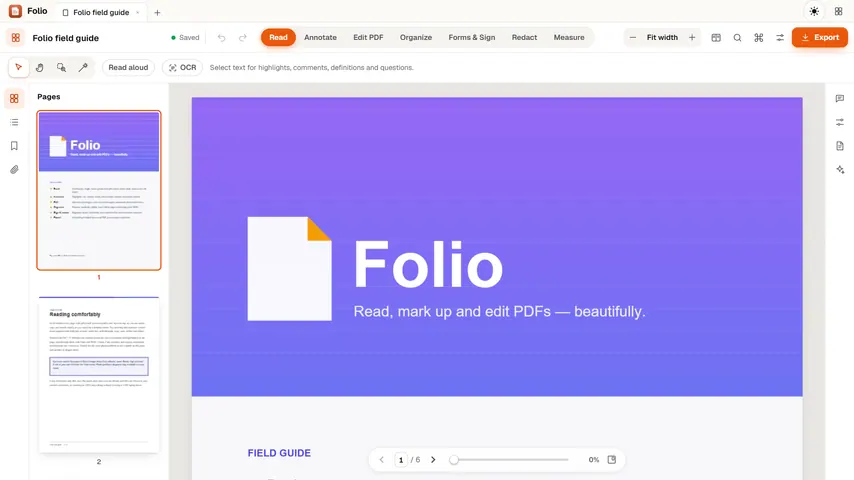
A scanned PDF is only pictures of pages, so you can't search it or copy from it. Folio reads the text on each page with on-device recognition, so you can find words, select and highlight them, and export a PDF that's searchable everywhere.
Included free with a SEMDIV account (Folio Free holds up to 20 PDFs, 100 MB each).
How it works
- 1
Open the scan
Open a scanned PDF in Folio, or drop in photos of pages to turn them into one PDF.
- 2
Recognise the text
Choose the language and press Recognize. Pages are read one at a time in the background.
- 3
Search and export
Search, select and highlight the recognised words, then export a searchable PDF.
What you can do with Folio
14 languages
English, Hindi, Bengali, Tamil, Telugu, Marathi, French, Spanish, German, Portuguese, Arabic, Russian, Japanese and Simplified Chinese, plus English and Hindi together.
Runs on your device
Recognition happens in a background worker in your browser. The PDF is never uploaded.
Searchable PDF export
The recognised text is saved as an invisible layer, so the exported PDF can be searched and copied in other PDF readers.
Select, highlight and copy
Recognised words behave like normal PDF text in Folio.
Choose the pages
Recognise every page, the current page, or a range such as 1-5, 8.
Photos too
Photos of documents or receipts become a PDF you can recognise.
More Folio workflows
PDF Editor →
Folio opens any PDF instantly and gives you precision tools to highlight, comment, sign and redact. The PDF itself stays in your browser on your device; your edits follow your workspace.
Sign PDF Online →
Skip printing, scanning and expensive e-signature subscriptions. Folio lets you fill out PDF form fields, add checkmarks and dates, and place a crisp drawn or typed signature — while keeping the confidential PDF on your own device.
Redact PDF Online →
Drawing a black rectangle over text in a regular PDF editor is a classic security disaster — anyone can still select, copy or search the text underneath. When you apply redactions in Folio, every redacted page is flattened and rasterized with the opaque black boxes burned in on top, permanently destroying the underlying text and vector data.
Merge & Organize PDF →
Clean up messy multi-page PDFs before you send them. Folio lets you append additional PDF files, rotate sideways scans, crop margins, delete blank pages, or split out a clean page range — all locally in your browser.
Photo to PDF →
Took pictures of a form, a receipt or your notes? Drop them into Folio and they become one PDF, one photo per page, ready to sign, mark up, make searchable or send.
Split & Extract PDF Pages →
Pull a single signed page out of a 90-page contract, remove blank scan sheets, or reorder chapters visually. Folio splits, extracts, deletes and rotates PDF pages locally in your browser without uploading the file.
Hindi & Indian Script PDF OCR →
Scanned circulars, gazettes, land records, court orders and textbooks in Indian scripts are usually trapped as flat images. Folio runs optical character recognition (OCR) in 14 languages — including Hindi, Bengali, Tamil, Telugu, Marathi and English — right on your own device.
Questions about Folio
Is my scanned PDF uploaded for OCR?
No. Text recognition runs inside your browser on your own device, and the PDF never leaves it. The first run downloads the language data once.
Does Folio OCR work for Hindi and other Indian languages?
Yes. Folio recognises Hindi, Bengali, Tamil, Telugu and Marathi, and can read English and Hindi together on the same page.
Will the exported PDF be searchable in other apps?
Yes. Folio exports the recognised text as an invisible text layer under the page image, so other PDF readers can search and copy it.
How accurate is it?
Clear, straight scans read very well. Blurry photos, handwriting and unusual fonts read less reliably, so check names and numbers.
More free tools in SEMDIV
 PressaCompress PDF files
 FluxCutEdit video in your browser
 GridoraA spreadsheet that thinks
 SparkdeckMake slides that move people
 ScribeWrite with clarity
 DriveKeep every file safe
 CalendarPlan your days
 TodoGet the right things done
 ContactsEveryone you know
 MemoCatch the thought
 ChatPrivate messages
 MeetFace-to-face meetings